
Status Pages
Create a status page
Section titled “Create a status page”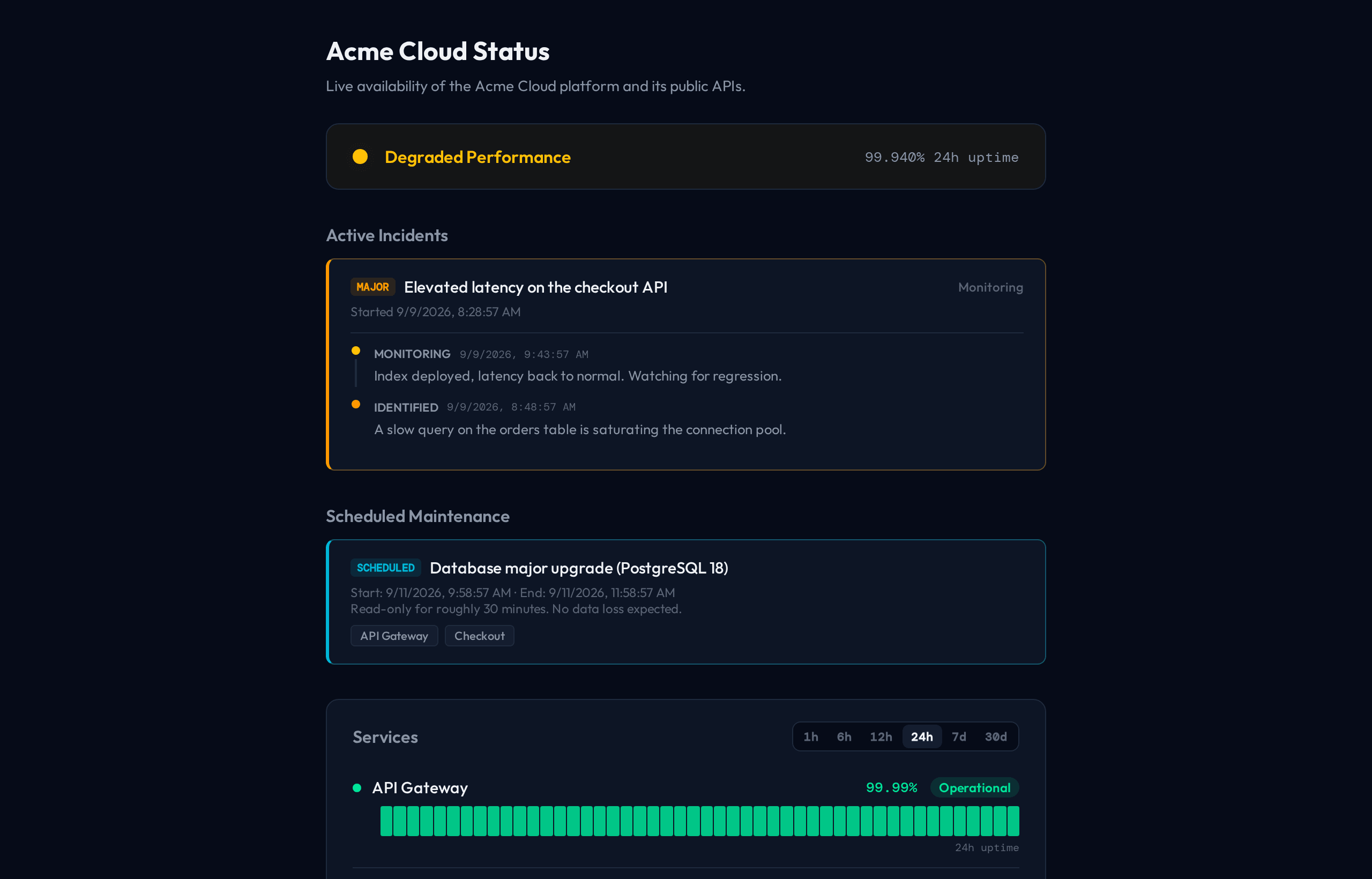
Status pages let your users check the state of your services in real time.
- Go to Status Pages in the sidebar (under Public).
- Click Create a status page.
- Give it a title and an identifier (URL) — the page’s slug.
- Open the page and pick, under Displayed monitors, which monitors it shows.
The public URL
Section titled “The public URL”A page lives under your organisation’s own slug:
https://okstatus.eu/<your-org-slug>/status/<page-slug>The org slug comes from Settings → General; the page slug is fixed at creation and cannot be changed afterwards. The status pages list has a Copy link action that gives you the full address.
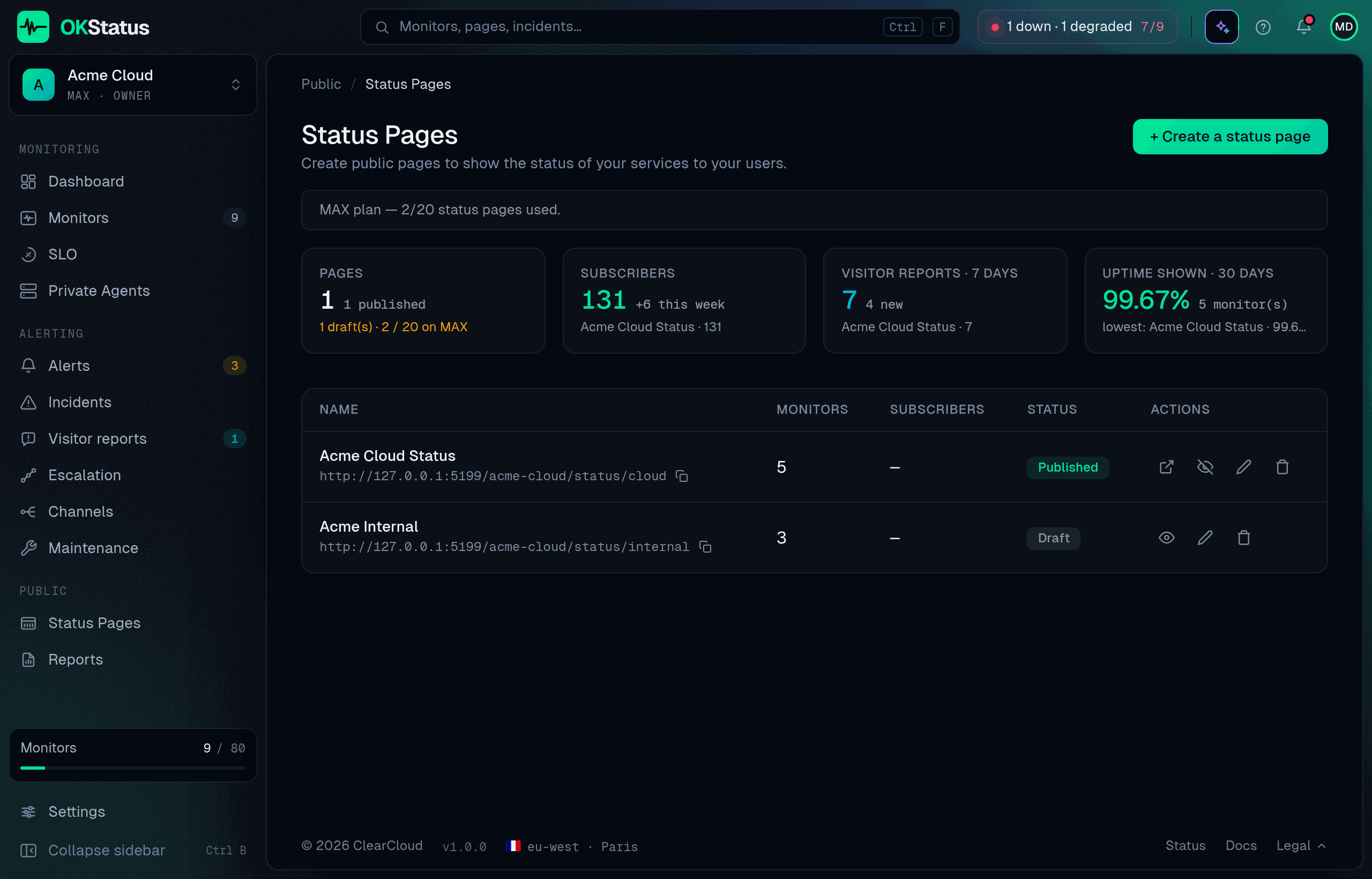
The list also tells you, across every page, how many are published against your plan’s quota, how many confirmed subscribers you have, how many visitor reports came in over 7 days and the uptime your pages currently show.
How many pages you get
Section titled “How many pages you get”| Plan | Status pages |
|---|---|
| Free | 1 |
| Pro | 5 |
| Max | 20 |
| Enterprise | Unlimited |
Customization
Section titled “Customization”Everything below is in the page’s General section:
| Option | Description | Plan |
|---|---|---|
| Title | Name shown at the top of the page | All |
| Short description | Intro text below the title | All |
| Layout | Editorial (default) or Enterprise — see Layouts | All / Enterprise |
| Accent color | Hex colour used for the page’s highlights (default #00e599) | Pro |
| Theme | Auto (follows the visitor’s system), Light or Dark | Pro |
| Logo | Uploaded image or URL, shown in the header | Pro |
| Favicon | Uploaded image or URL, the browser-tab icon | Pro |
| Page published | An unpublished page is not publicly reachable at all | All |
| Show incident history | Lists past resolved incidents at the bottom of the page | All |
| Show status by region | Region indicator on each service; visitors click a row for the per-region breakdown (off by default) | All |
| Show response times | Median response time per service, per region and as a chart (off by default) | All |
| Visitor issue reports | Shows a “Something looks wrong?” form at the bottom of the page (on by default) | All |
| Password protection | Requires a password to view the page | Max |
| Heartbeat bar ranges | Which windows visitors can pick: 1h, 6h, 12h, 24h, 7d, 30d, 90d | All |
At least one heartbeat range must stay enabled. 90d is opt-in — existing
pages keep the six shorter ranges until you tick it.
The accent colour is used for your brand marks — the hairline at the top, section titles, links, the subscribe button. Service statuses keep their own colours, and the editor warns you when the colour you picked is hard to read or too close to the green, amber or red that mean a status.
Layouts
Section titled “Layouts”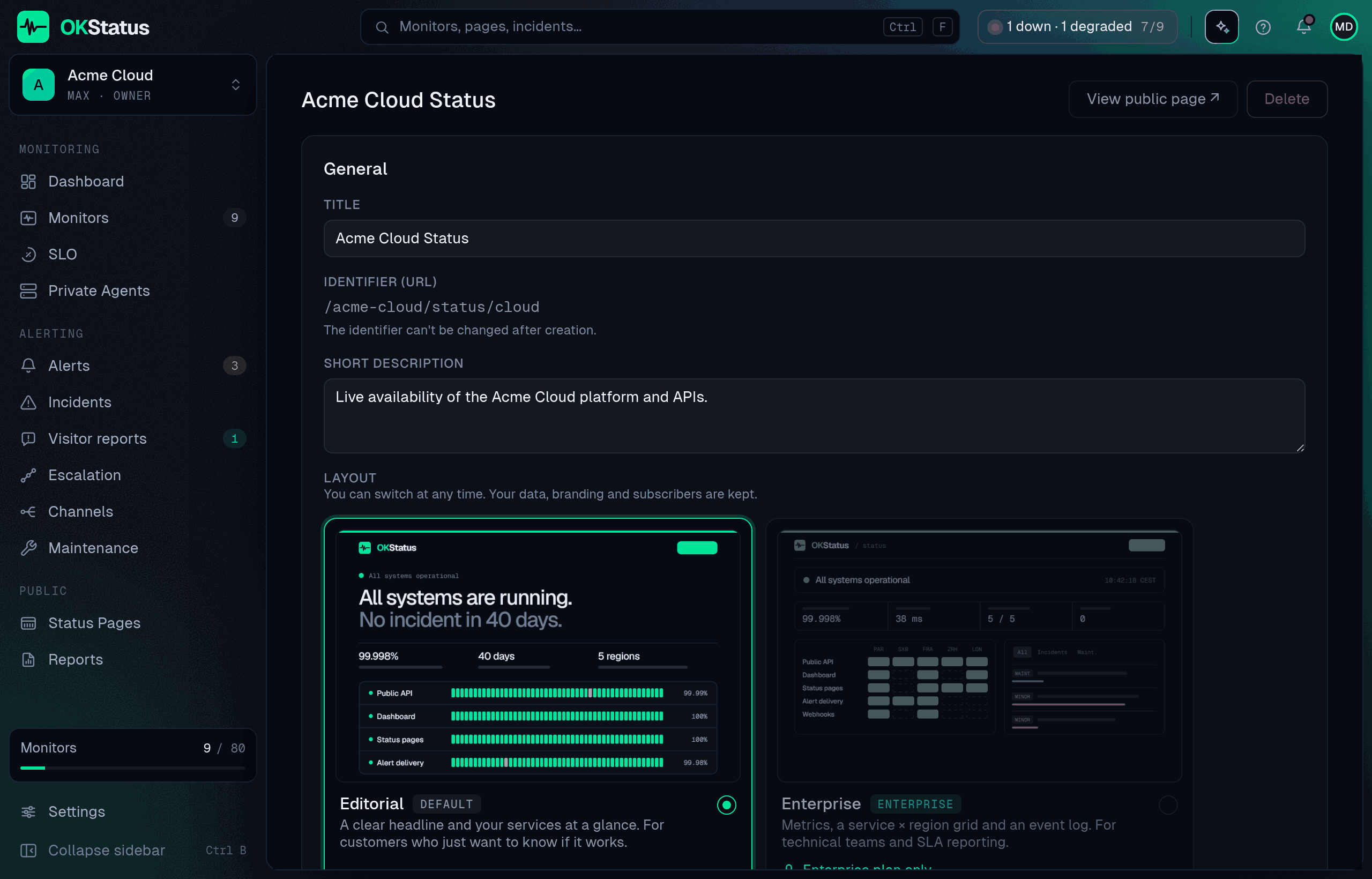
| Layout | What visitors get | Plan |
|---|---|---|
| Editorial | A one-sentence headline, three figures, then your services at a glance. For customers who just want to know if it works. | All |
| Enterprise | Metrics, a service × region grid and a filterable event log. For technical teams and SLA reporting. | Enterprise |
You can switch at any time: your data, branding and subscribers are kept. If an organisation leaves the Enterprise plan, a page set to Enterprise is shown as Editorial until the plan is back.
Custom domain
Section titled “Custom domain”Available from the Pro plan. A status page can answer on a subdomain of
yours (status.your-domain.com) with its own TLS certificate, issued and
renewed automatically.
-
Open the page in Status pages, section Custom domain, enter the hostname and click Save domain.
-
Add the record shown in the panel to your DNS zone. The name is relative to your zone: most providers add the rest for you.
Your hostname Type Name Value status.acme.comCNAME statuspages.okstatus.eu -
Leave the panel open or come back later. The panel follows the domain in three steps: Domain saved, Waiting for your DNS, then Connected. OKStatus rechecks the record every 30 seconds for the first ten minutes, then every two minutes for two weeks, and the panel updates on its own; Check DNS forces a check. Some DNS providers publish a change several minutes later: for 30 minutes after you save the domain, a record that is not visible yet stays Waiting for your DNS rather than an error. A record that points somewhere else is shown as DNS record to fix at once, with what it points to. When it resolves, the page owner gets an e-mail. The certificate is issued on the first visit, within seconds.
Good to know:
- HTTP redirects to HTTPS on your domain. The
okstatus.eu/<org>/status/<page>address keeps working. - Cloudflare: set the record to DNS only (grey cloud). A proxied record hides your domain’s address, so the certificate cannot be issued.
- CAA records on your zone must allow
letsencrypt.org. - One domain per page; a hostname already used by another status page is
refused. Root domains (
acme.com) are not supported yet: use a subdomain. - If the record disappears, the page stops answering on the domain within a
day and falls back to its
okstatus.euaddress. Removing the domain in the panel takes effect at once.
Language
Section titled “Language”The page has its own language, independent of the dashboard and of your visitors’ okstatus.eu settings. In the page settings (on a phone, the Visitors tab):
- Default language — English, French, German, Spanish, Italian, Portuguese or Polish. What every visitor sees unless they pick another one. Pages created before October 2026 are in English.
- Follow the visitor’s browser language — off by default. On, a visitor whose browser is set to one of the seven languages sees the page in it; others get the default language.
- Show the language selector — on by default. A language menu in the page header; a visitor’s choice is remembered for this page only (on a custom domain, for the whole domain) and never changes their dashboard language.
The order is: the visitor’s choice on the page, then their browser language if you allow it, then the default language.
Sections and order
Section titled “Sections and order”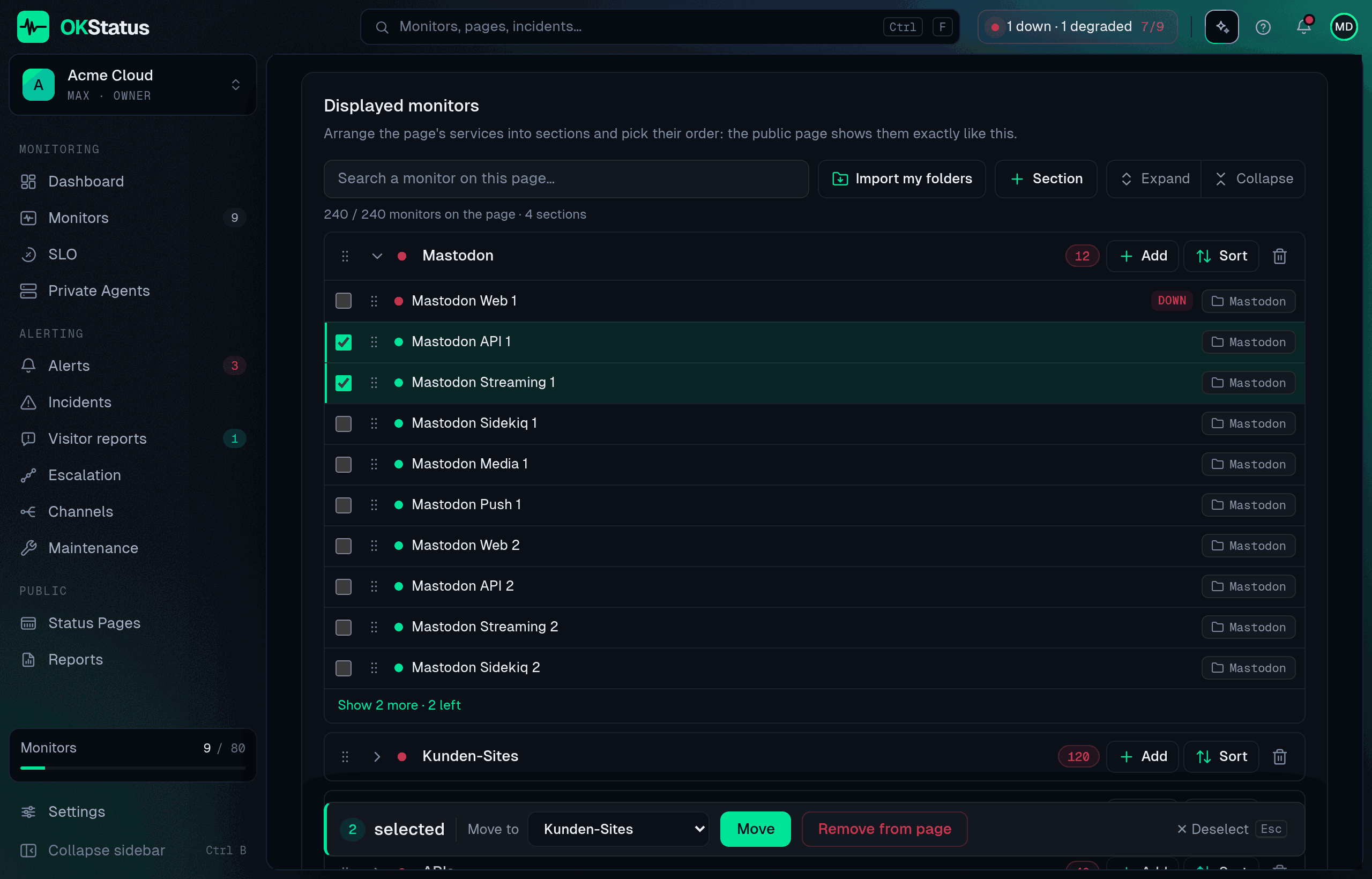
The Displayed monitors card arranges the page into sections, shown in the same order on the public page, in both layouts.
- Section creates one; type its name in place. Import my folders creates one section per monitor group with the monitors not on the page yet (a section with the same name is completed instead).
- Add opens a picker with search and a whole group in one click. Monitors already on the page are not listed: a monitor appears once per page.
- Drag sections and monitors to reorder them, or use Alt + ↑ / ↓ on the handle. Sort orders one section by Name, A → Z, Problems first or By folder.
- Tick monitors (Shift-click for a range), then Move to another section or Remove from page.
- Sections stay collapsed, with their service count and worst status, so a page with hundreds of monitors stays readable; the search box finds a monitor in any of them.
Click Save selection to publish the new layout.
What’s displayed
Section titled “What’s displayed”The status page automatically shows:
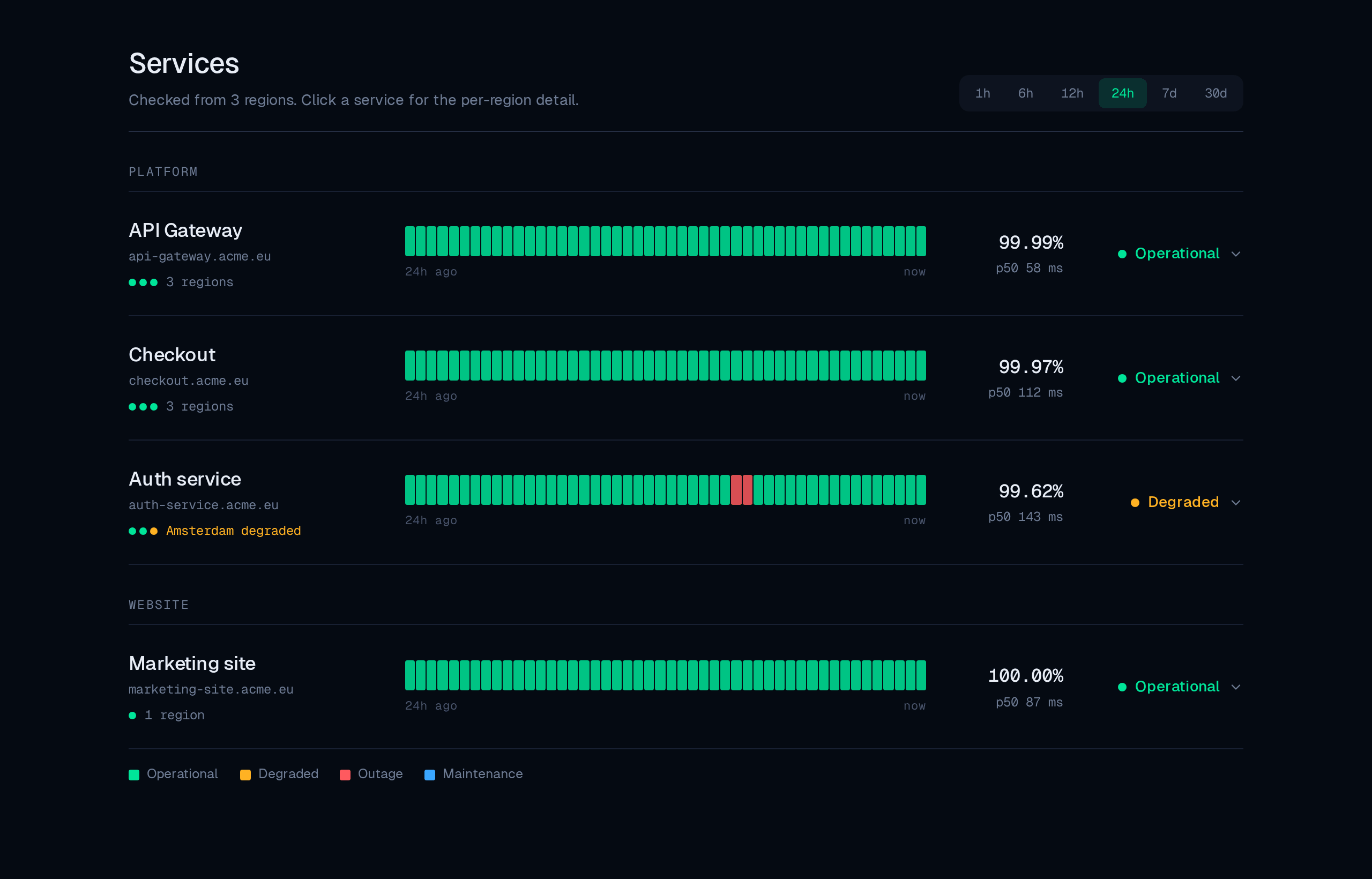
- Overall status — Operational, degraded, or down. In the Editorial layout it is written as a sentence, taken from the ongoing incident when there is one.
- Three figures — uptime over 24 hours, days since the last incident, number of monitoring regions.
- Each monitor’s state — With a visual indicator (green, amber, red).
- A heartbeat bar and uptime % per monitor, over the range the visitor picks from the ranges you enabled.
- Response time — If you enable it: the median response time of each service over the selected range. When it’s off, no response time is published at all, not even in the heartbeat bar’s tooltips.
- Status by region — If you enable it: the regions checking each service, with the one in trouble named on the row. Clicking the row opens the breakdown: status, heartbeat bar, uptime and (with response times on) median latency per region, plus a response-time chart. Private agents are never shown.
- Announcements — Free-form banners you publish yourself (see below).
- Incidents — Ongoing ones at the top with their timeline; past ones, if enabled, in the Journal together with the announcements. The Journal has an RSS feed.
- Scheduled maintenance — Shown in advance to give your users a heads-up.
A service’s status follows the same rule as your dashboard: down only when a majority of its regions fail, degraded when a minority does. The heartbeat bar applies the same rule to each interval.
Announcements
Section titled “Announcements”An announcement is a lighter-weight message than a formal incident — planned work, general information, or an “all clear” — shown at the top of the public page. In the page editor’s Announcements section, give it a title, optional details, and a type: Information, Warning, Outage, Resolved / operational, or Neutral. Announcements can be archived and republished; archived ones stay listed under the editor for reuse.
Use an incident instead when you want subscribers emailed and a resolution timeline.
Embedding on your own site
Section titled “Embedding on your own site”The editor’s Embed section gives you two ready-to-paste snippets:
-
Pulse badge — a small live SVG pill, on every plan. Details and other badge shapes: Status Badges.
-
Floating status bubble (Max) — an expandable corner widget powered by the same live status:
<scriptsrc="https://okstatus.eu/widget.js"data-org="YOUR_ORG_SLUG"data-page="YOUR_PAGE_SLUG"async></script>
Visitor subscriptions
Section titled “Visitor subscriptions”Your users can subscribe to your status page to get email notifications:
- The visitor clicks Subscribe on your status page.
- They enter their email and confirm via a validation link (double opt-in).
- On every new incident or incident update, they receive an automatic email.
- They can unsubscribe at any time via the link at the bottom of each notification.
Subscriptions are entirely handled by OKStatus — no extra setup needed. Full detail: Alerts from a status page.
Visitor issue reports
Section titled “Visitor issue reports”Visitors can also flag a problem your monitors haven’t caught yet, using the Something looks wrong? form at the bottom of the public page. The report — their email, an optional affected service, and a message — is emailed to the organization’s owner and lands on the Alerting → Visitor reports page. It’s clearly marked as visitor-submitted, not a confirmed OKStatus-detected incident, so verify before acting on it. You can turn the form off per page.
Visibility
Section titled “Visibility”Status pages are public by default — reachable without authentication. On Max and above you can put one behind a password instead, for a page meant only for your customers.