
Monitor Groups
Monitor groups let you arrange the Monitors list (AI models included) into foldable folders — for example one group per client, or a split between production and staging. Groups are purely an organizing layer: a monitor’s URL and settings never change when you group it.
How groups work
Section titled “How groups work”- A monitor lives in at most one group. Monitors you don’t put in a group stay in the classic list below.
- Groups always appear on top of the list and can be folded away.
- Each group shows its uptime over 24 hours, an aggregate status dot (green when everything inside is up, amber if one monitor is degraded, red if any is down) and a monitor count.
- Deleting a group never deletes its monitors — they simply return to the ungrouped list.
Create a group
Section titled “Create a group”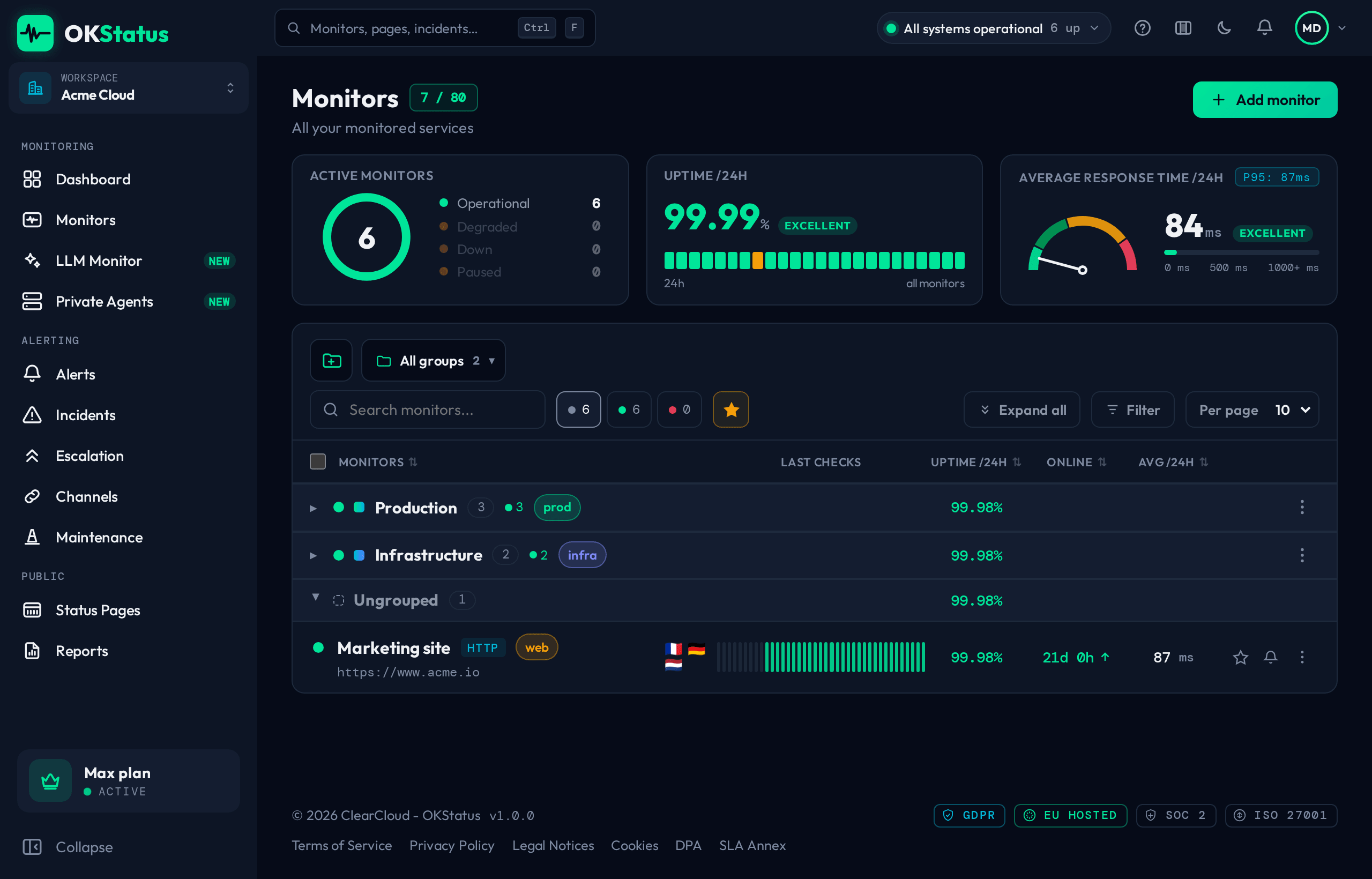
- On the Monitors page, click New group on the toolbar, to the left of the search box.
- Give the group a name, optionally add tags, and pick a colour for its cover strip.
- Save. The new group appears at the top of the list, ready for you to move monitors into it.
Move monitors in and out
Section titled “Move monitors in and out”Use a monitor’s row menu (or the group’s Edit) to place it in a group. To move several at once, tick them and use Group in the bar that appears. Because a monitor can only be in one group, moving it into a new group removes it from its previous one. Removing a monitor from a group sends it back to the ungrouped list.
Group tags
Section titled “Group tags”A group can carry its own tags. When you save the group with “Apply these tags to every monitor in the group” checked, those tags are added to each member monitor — handy for tagging a whole client at once. Leave the box unchecked to keep the tags on the group only.
Pause or mute a whole group
Section titled “Pause or mute a whole group”From a group’s ⋯ menu you can pause or mute every monitor inside in one action:
- Pause group stops checks for all its monitors; Resume starts them again.
- Mute group silences alerts for all its monitors; Unmute re-enables them.
Resuming or unmuting a group re-activates all of its monitors — it does not remember which monitors were individually paused or muted beforehand.
Colours
Section titled “Colours”Group covers use a thin colour strip at the top of the card. You can choose one of four preset gradients (Aurora, Nebula, Ocean, Ember) or a solid brand colour.
Search
Section titled “Search”Groups are searchable from both the Monitors page search box and the global search (Ctrl+F): typing a group’s name jumps straight to it.
A group can carry an SLO (Max and Enterprise): open it (⋯ → Edit) and pick an objective. The group counts as down whenever one of its monitors is, and its budget shows on the group header (“SLO 99.5 % · budget 71 %”). Budget notices go to the group’s alert channels.
Availability
Section titled “Availability”Monitor groups are available on all plans. Viewers (read-only members) can browse and fold groups but cannot create or edit them.