
Alert channels
Available alert channels
Section titled “Available alert channels”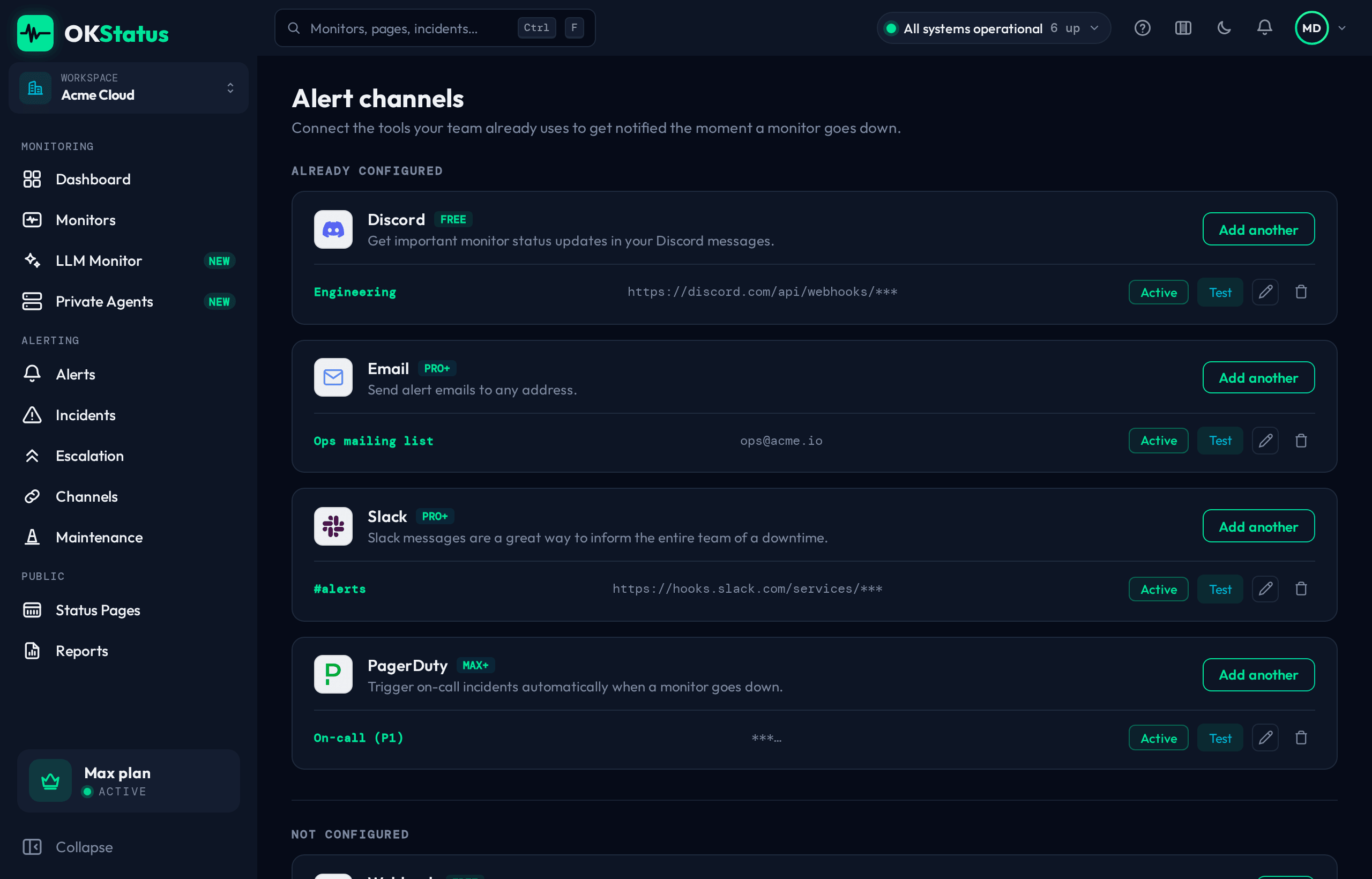
OKStatus supports nineteen notification channels. Each channel is an org-level object attached to the monitors that should notify it. The Apply to all my monitors box in the creation dialog is ticked by default, so a new channel starts attached to every monitor you have at that moment — untick it to pick monitors yourself. Monitors created later are never attached automatically.
| Channel | Plan |
|---|---|
| Discord | Free |
| Webhook | Free |
| Telegram | Free |
| Pro | |
| Slack | Pro |
| Google Chat | Pro |
| Alertmanager | Pro |
| Pushover | Pro |
| Rocket.Chat | Pro |
| Mattermost | Pro |
| SMS | Pro (credits) |
| ntfy | Max |
| Microsoft Teams | Max |
| Splunk (HEC) | Max |
| PagerDuty | Max |
| Grafana IRM | Max |
| Jira Service Management | Max |
| incident.io | Max |
| Jira | Enterprise |
Higher tiers include every channel from the tiers below them. The plan gate is checked when you create a channel — channels created before a change keep working.
Setup steps for the webhook-configured channels have their own pages: Discord, Webhooks, Alertmanager, Pushover, Rocket.Chat, Mattermost, Grafana IRM, Jira Service Management, incident.io, and Jira. Slack, Telegram, ntfy, MS Teams, Splunk, Google Chat, and PagerDuty are covered in Other channels.
The four tiles at the top of the page summarise the lot: how many channels are active, how many are not delivering (see Delivery — an expired webhook, a revoked token), how many monitors have at least one channel (Coverage, with a link to the ones that have none), and when the last notification went out.
The simplest channel. Every state change (UP → DOWN, DOWN → UP) generates an email.
Setup:
- Go to Alerting → Channels (or attach one directly from the monitor creation wizard’s last step).
- Click Add a channel → Email.
- Enter the recipient address.
- Click Create.
The notification email includes the monitor’s name and URL, the new status, the region that detected the issue, and the exact time of the state change.
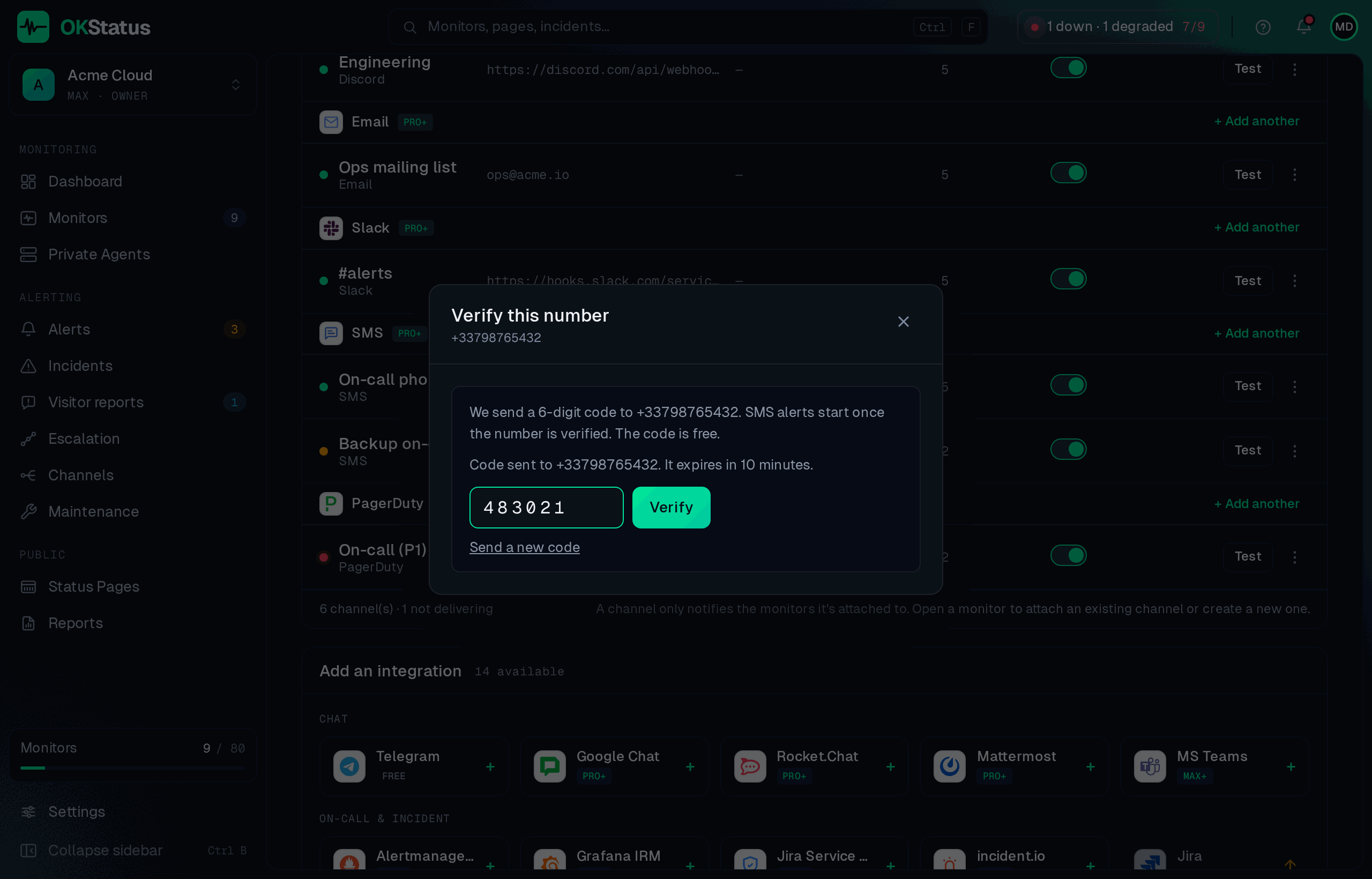
Text messages to a phone, for the alerts that must wake someone up. Only down and recovery alerts go out by SMS; degraded and paused states do not. Each SMS uses prepaid credits — see SMS credits.
Setup:
- Go to Alerting → Channels and click SMS (Pro plan and above).
- Enter the mobile number in international format, with the country code:
+33 6 12 34 56 78. - Click Create channel. The dialog then sends a 6-digit code to that number.
- Type the code and click Verify.
Until the number is verified, the channel sends nothing: its row shows Number not verified with a Verify the number link. The code is free, valid 10 minutes, and you get 5 tries; a new number (edited later) has to be verified again. This step makes sure nobody can point alerts at a phone whose owner never agreed to receive them.
Countries: European numbers only — the European Union, Iceland, Liechtenstein, Norway, the United Kingdom and Switzerland. An SMS costs 1 credit to France, Spain, Italy, the UK, Portugal or Poland, 2 to Belgium, Austria, the Netherlands or the Nordics, and 3 to Germany.
Limits: to keep an alert storm from emptying your credits, an organisation sends at most 10 SMS per hour and 40 per day, and one number receives at most 5 per hour. Past a limit, alerts keep going through your other channels, and the Latest SMS list on the billing page shows the ones that were held back.
The message reads OKStatus: checkout-api is DOWN (Paris). https://api.example.com — 160 characters at most, so one alert is one SMS. SMS are sent through OVHcloud from France.
Delivery: retries and failing channels
Section titled “Delivery: retries and failing channels”When a provider fails to take an alert, OKStatus looks at why:
- Temporary errors — a timeout, a network error, a
5xxor a429(rate limit). OKStatus tries that channel again after 30 s, then 2 min, then 10 min. The row on the Channels page shows Retrying in… in the meantime. A retry is dropped when the monitor’s state has changed (a DOWN is never delivered after the UP that ended it), when the alert has been acknowledged, or when the channel was disabled. - Permanent errors — a redirect (
301/302, usually a truncated or deleted webhook URL),401/403(revoked token),404/410(deleted integration),405,400/422. Retrying would fail the same way, so OKStatus doesn’t. The channel’s row says what is wrong in plain words, with Edit next to it.
A channel is failing after 3 permanent failures in a row (a timeout retried three times counts once), or after 24 hours of failures without a single successful send. The organisation’s owner and admins then get one e-mail, in the organisation’s language, naming the channel, the provider’s response and the monitors concerned. Nothing more is sent until the channel delivers again: the first successful alert or a successful Test re-arms it. The monitors’ other channels keep receiving the alerts in the meantime.
Choosing which monitors a channel notifies
Section titled “Choosing which monitors a channel notifies”A channel doesn’t apply to every monitor just by existing. You scope it either:
- At monitor creation — the last step of the “New monitor” wizard lets you select existing channels (or create a new one) right there.
- From the monitor’s detail page — attach, detach, or adjust a channel’s alert kinds at any time.
- From Alerting → Channels — a channel’s menu (⋮) lets you attach monitors to it, apply it to all monitors, or to every monitor carrying a given tag, in one action.
Alert kinds
Section titled “Alert kinds”For each channel attached to a monitor, you can independently toggle which kinds of events it should notify for:
- Up / down — the monitor’s availability state changes.
- SSL certificate expiry — the monitor’s TLS certificate is nearing expiration.
- Domain expiry — the monitored domain’s registration is nearing expiration.
All three are enabled by default. Uncheck any of them per channel if, for example, you want your Discord channel to only ever ping on outages while email also carries certificate-expiry warnings.
Anti-false-positive logic
Section titled “Anti-false-positive logic”A single failed check never pages you. Two safeguards apply, both driven by the monitor’s own settings:
- Retry window — a region only confirms a failure after
retries + 1consecutive failed checks (default: 2). The first failure shows as degraded; for a single-region monitor it also sends a soft warning. - Majority rule — a multi-region monitor is down only when more than half of its regions confirm the failure. One region alone is a partial outage: orange status and one alert naming that region — you know something is wrong from that vantage point, without a false “everything is down”.
Recovery is announced once, when every region is healthy again. Every alert kind is sent once per transition, never re-sent while the state lasts. Full rules and diagrams: Status & uptime.
Advanced options
Section titled “Advanced options”For each monitor, you can also configure:
| Option | Description | Default |
|---|---|---|
| Retries | Consecutive failures tolerated before the monitor is marked down | 1 |
| Mute | Silence alerts for a monitor without pausing its checks | Off |
Best practices
Section titled “Best practices”- Combine email + Discord/Slack — email for the archive, chat for responsiveness.
- Use webhooks to feed your on-call tool (PagerDuty, Opsgenie).
- Mute a monitor during a known noisy period instead of disabling it entirely — checks keep running, alerts just stay quiet.
- Test your channels after setup with the Test button next to each one.
- Check the Alerts page for “no channel” rows — an alert that was detected but never sent is the most common gap after adding monitors.