
Team & roles
Everything on this page lives under Settings → Team, in the organisation half of the settings menu.
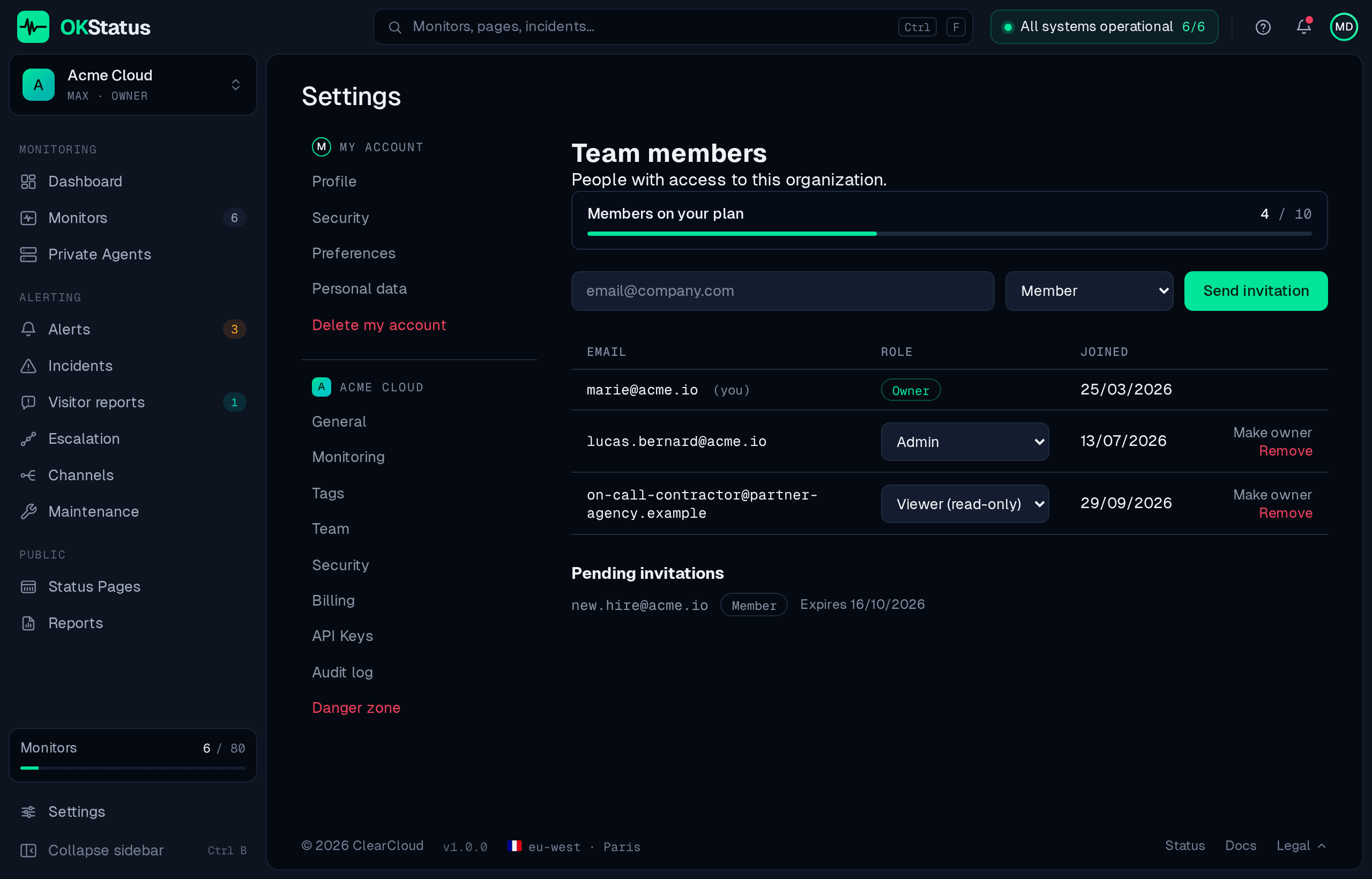
An organization has exactly one owner — at first, the account that created it. Everyone else carries one of three roles:
| Role | Can read | Can change things | Can manage the team | Notes |
|---|---|---|---|---|
| Owner | Yes | Yes | Yes, including owners | One per org. Cannot be removed. |
| Admin | Yes | Yes | Yes, except owners | |
| Member | Yes | Yes | No | The default for a new invite. |
| Viewer (read-only) | Yes | No | No | Every write is refused server-side. |
A few rules are enforced on the server, not just hidden in the UI:
- Only the owner can hand the organization over — Make owner, on a member’s row — or change the owner’s role. An admin can never promote themselves.
- The owner cannot be removed from the team page. Deleting the organization is the owner’s own action, from Settings → Danger zone.
- A viewer’s writes are refused with
403 ROLE_READ_ONLY— through the dashboard, and through anything else that speaks to the API with their session. The exceptions are their own profile, their own email verification, and their own GDPR data export.
How many people you can invite
Section titled “How many people you can invite”| Plan | Members (owner included) |
|---|---|
| Free | 1 |
| Pro | 3 |
| Max | 10 |
| Enterprise | Unlimited |
Pending invitations count against the limit, so a burst of invites can’t push you past it. Limits apply when adding: an organization already above a lowered limit keeps the members it has.
Adding seats (Pro, Max)
Section titled “Adding seats (Pro, Max)”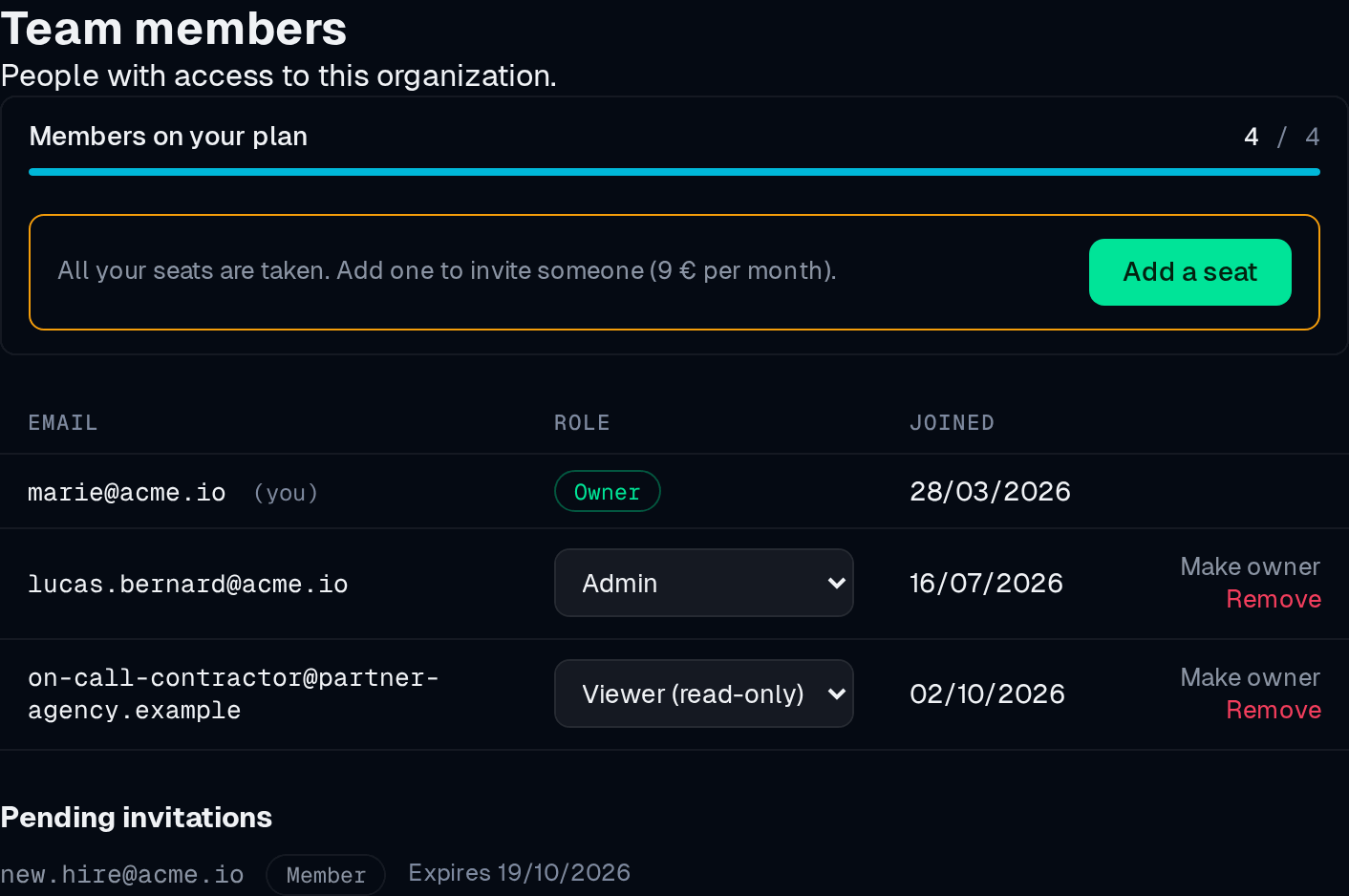
On Pro and Max, you are not stuck at the plan’s limit: each extra seat costs 9 € per month (97.20 € per year on annual billing). When every seat is taken, the Team page offers Add a seat instead of a plan change; the seat is charged pro rata on your current subscription, and you can then send the invitation. The number of seats is managed in Billing.
Only the owner and admins can invite people and buy seats: both commit the organisation. The invitation itself always goes by email.
Invite someone
Section titled “Invite someone”- Go to Settings → Team.
- Enter the email address, pick a role, and click Send invitation.
- They get an email with a link. The invitation expires after 48 hours.
Re-inviting an address that already has a pending, non-expired invitation refreshes it rather than creating a second one. An address that is already a member is refused with a clear message.
Pending invitations are listed on the same page with their expiry date.
Single sign-on (Enterprise)
Section titled “Single sign-on (Enterprise)”On the Enterprise plan, your organization can be wired to your own identity provider (SAML or OIDC) brokered through OKStatus’s Keycloak. Once configured:
- Users click Sign in with SSO on the login page and enter your organization slug — they are redirected straight to your IdP.
- With require SSO on, password and social sign-in are refused for members of that organization; the IdP is the only way in.
- With an auto-join domain set (e.g.
acme.com), anyone signing in with a verified email on that domain joins the organization as a member on first login, with no invitation.
Setting up the IdP connection, require-SSO and auto-join is done by OKStatus as
part of your Enterprise onboarding — write to contact@okstatus.eu with your
IdP’s metadata.
Two-factor authentication
Section titled “Two-factor authentication”Every account can enrol a TOTP authenticator from Settings → Security (under My account), on every plan. On Enterprise, an owner or admin can additionally require it for the whole organization: members without an authenticator are sent to the enrolment screen on their next request. Organizations that require SSO are exempt — the identity provider enforces MFA there.
See Account security for the details.
Who changed what
Section titled “Who changed what”Every create, update and delete — including invitations, role changes and removals — is written to the audit log with the actor, the resource and the source IP.